Get Noticed: Show Your In-Store Products on Google Maps
By Bhcguide City Directory | Jun 07, 2024
As a local business owner, your goal is to attract customers to your physical store. While online visibility is crucial, you also want to make sure that potential customers in your area can find your products when they search for them. This is where Google Maps comes in.
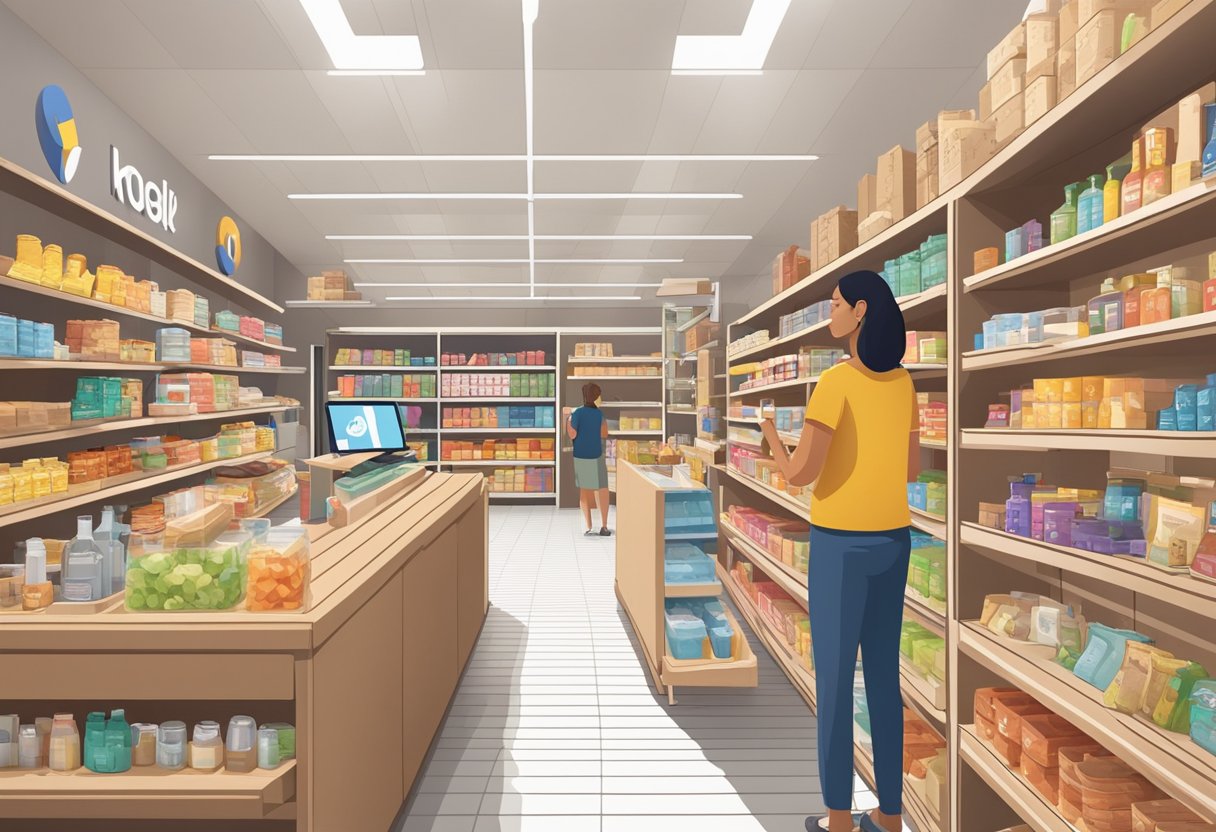
Learn How to add your in-store products to Google Maps
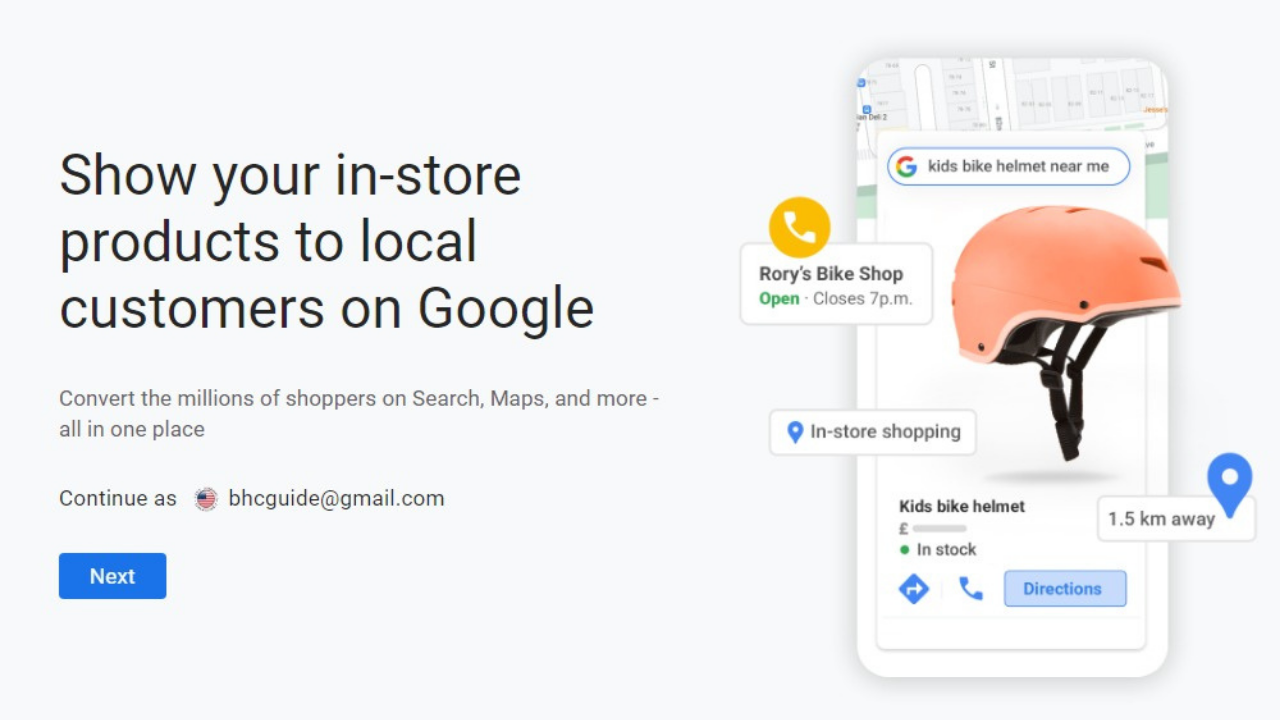
Google Maps is not just a tool for finding directions and locations. It also allows businesses to showcase their products to local customers. By adding your products to Google Maps, you can increase your visibility and attract more foot traffic to your store.
This article will guide you through the process of showing your in-store products to local customers on Google Maps. From getting started with Google Maps product listings to optimizing your product visibility, leveraging local inventory ads, analyzing customer interactions, engaging with customers, promoting in-store events and offers, staying compliant with Google's guidelines, and answering frequently asked questions, I will cover everything you need to know to make the most of this powerful tool. So, let's get started!
Key Takeaways
- Adding your products to Google Maps can increase your visibility and attract more foot traffic to your store.
- By optimizing your product visibility, leveraging local inventory ads, and engaging with customers, you can improve your chances of converting potential customers into actual customers.
- Staying compliant with Google's guidelines is crucial to avoid penalties and maintain your online presence.
Learn More - Informative Links
Manage your business profile - https://bullheadcityguide.me/4c0WeyP
Showcase in-store products on Google Maps - https://bullheadcityguide.me/3XewOty
Connect and learn about the product reader - https://bullheadcityguide.me/4bRjnnQ
Learn who can add products automatically - https://bullheadcityguide.me/3Rf37oh
Showcase your products on Google Maps - https://bullheadcityguide.me/3XbIeOn
Bullhead City Guide - Business Profile
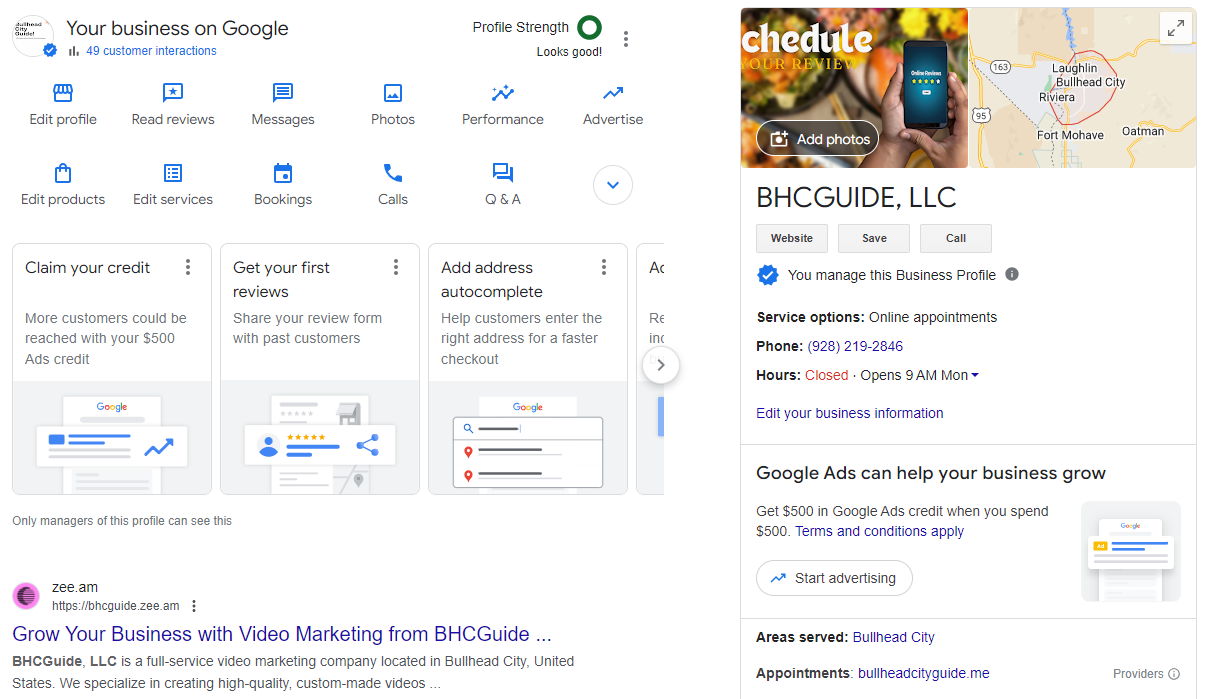
Schedule an appointment today! Our Google Certified experts are ready to assist you in setting up and optimizing your Google Business Profile, ensuring your business stands out and attracts more customers. - Click Here -
-----
Getting Started with Google Maps Product Listings
Setting Up Your Business Profile
To get started with Google Maps product listings, the first thing you need to do is set up your business profile. This is where you'll add all the information about your business, such as your address, phone number, website, and hours of operation. You'll also be able to add photos, videos, and other details about your business that can help attract local customers.
To set up your business profile, simply go to Google My Business and create an account if you haven't already. Once you've created your account, you can start adding your business information. Be sure to fill out all the fields as completely and accurately as possible, as this will help your business show up in relevant search results on Google Maps.
Verifying Your Location
Once you've set up your business profile, the next step is to verify your location. This is important because it lets Google know that your business is a legitimate, physical location and not a spam or fake listing.
To verify your location, you'll need to request a verification code from Google. This code will be sent to you via mail or phone, depending on the verification method you choose. Once you receive the code, simply enter it into your Google My Business account to complete the verification process.
It's important to note that verification can take several days or even weeks, so be patient and check your mail or phone regularly for the verification code. Once your location is verified, you'll be able to start adding your products to Google Maps and reaching local customers in your area.
Optimizing Product Visibility
Product Titles and Descriptions
As I optimize my products for visibility on Google Maps, I find that using clear and concise product titles and descriptions is essential. I make sure to include relevant keywords in the titles and descriptions to help customers find my products easily.
I also keep my descriptions short, sweet, and to the point. I highlight the key features and benefits of my products to entice customers to click on them.
High-Quality Images
In addition to using descriptive titles and descriptions, I make sure to upload high-quality images of my products. Clear and well-lit images that showcase my products from different angles help customers make informed purchase decisions.
I also make sure to optimize my images by compressing them to reduce their file size without compromising their quality. This helps my products load quickly on Google Maps, which is essential for a positive user experience.
Price and Availability
Price and availability are crucial pieces of information that customers look for when browsing products on Google Maps. I make sure to keep my prices updated and accurate to avoid any confusion or disappointment for my customers.
I also ensure that my products are always available in-store before I upload them to Google Maps. This helps me avoid any negative reviews or customer feedback due to products being out of stock.
By optimizing my product visibility on Google Maps through clear titles and descriptions, high-quality images, and accurate pricing and availability information, I can attract more local customers to my store and increase my sales.
Leveraging Local Inventory Ads

Creating Your Campaign
To start leveraging Local Inventory Ads, I first need to create a Google Ads account and link it to my Google My Business account. From there, I can create a Local Inventory Ads campaign and upload my product feed. The product feed should include all the necessary details about my products, such as images, descriptions, pricing, and availability.
Once my campaign is set up, I can customize my ad format and choose where and when my ads will appear. I can also set a budget and bid for my ads based on how much I am willing to pay for each click.
Targeting Local Shoppers
To make the most of my Local Inventory Ads campaign, I need to target local shoppers who are most likely to be interested in my products. I can do this by selecting specific locations and radiuses where my ads will appear, as well as using keywords and negative keywords to refine my targeting.
I can also use audience targeting to reach specific groups of people, such as those who have previously visited my store or those who have shown interest in similar products. By targeting the right audience, I can increase the chances of my ads being seen by people who are most likely to make a purchase.
Overall, leveraging Local Inventory Ads can be a powerful way to show my in-store products to local customers on Google Maps. By creating a targeted and customized campaign, I can reach the right audience and drive more foot traffic to my store.
Analyzing Customer Interactions
Tracking Product Performance
As a business owner, it's important to track the performance of your products in order to understand which ones are popular and which ones need improvement. With Google Maps, you can easily track the performance of your in-store products by analyzing the number of clicks and views they receive.
To do this, simply log in to your Google My Business account and navigate to the "Insights" tab. From there, you can view the number of clicks and views your products have received, as well as the search terms that customers used to find them.
By analyzing this data, you can make informed decisions about which products to feature more prominently in your store and which ones may need to be re-evaluated.
Understanding Customer Insights
In addition to tracking product performance, Google Maps also provides valuable insights into your customers' behavior. By analyzing data such as the number of times customers have requested directions to your store or clicked on your phone number, you can gain a better understanding of how your customers interact with your business.
This information can be used to improve your in-store experience, such as by offering promotions to customers who have visited your store multiple times or by optimizing your store layout to better cater to your customers' needs.
Overall, by utilizing the insights provided by Google Maps, you can make data-driven decisions that will help you improve your in-store experience and attract more local customers.
Engaging with Customers
Responding to Questions
As a local business owner, I know how important it is to engage with customers who have questions about my products. When customers visit my store, I always make sure to answer their questions in a friendly and informative manner. However, with the rise of online shopping, it's just as important to engage with customers who have questions online.
Google Maps makes it easy to respond to customer questions. When someone asks a question about my store or products on Google Maps, I receive a notification. I can then respond to the question directly from my Google My Business account. This helps me provide quick and accurate answers to customers, which can lead to increased customer satisfaction and sales.
Encouraging Reviews

Reviews are an important part of any local business's online presence. They can help attract new customers and build trust with existing customers. That's why I always encourage my customers to leave reviews on Google Maps.
One way I do this is by including a message on my receipts that encourages customers to leave a review. I also make sure to respond to all reviews, whether they are positive or negative. This shows customers that I value their feedback and am committed to providing the best possible experience.
In addition, I make it easy for customers to leave a review by including a link to my Google Maps listing on my website and social media pages. This helps ensure that customers can easily find my business and leave a review if they choose to do so.
Overall, engaging with customers on Google Maps is an important part of any local business's online strategy. By responding to questions and encouraging reviews, I can build trust with customers and attract new business.
Promoting In-Store Events and Offers

Creating Event Listings
As a small business owner, I find it essential to promote my in-store events to attract more customers. Google Maps allows me to create event listings, making it easier for local customers to find out about my events.
To create an event listing, I simply log in to my Google My Business account and select the "Create Event" option. From there, I can add event details such as the title, date, time, and description. I can also include photos and videos to make my event more appealing to potential customers.
Special Promotions
In addition to events, I also like to promote special offers and promotions to encourage customers to visit my store. Google Maps allows me to showcase these promotions by adding them to my business profile.
To add a special promotion, I simply log in to my Google My Business account and select the "Posts" option. From there, I can create a post with details about my promotion, including the offer, expiration date, and any terms and conditions. I can also include a call-to-action button to encourage customers to take advantage of the offer.
By promoting my in-store events and offers on Google Maps, I can reach a wider audience and attract more local customers to my business.
Staying Compliant with Google's Guidelines
Product Data Specification
To ensure that your products are displayed accurately on Google Maps, it's important to follow Google's product data specification guidelines. This includes providing accurate and up-to-date information about your products, such as their name, description, price, and availability. You should also include high-quality images of your products to make them more appealing to potential customers.
To meet Google's requirements, you should use structured data markup to provide product information to Google. This will help Google understand the content of your pages and display your products more effectively on Google Maps. You can use tools like Google's Structured Data Markup Helper to create structured data markup for your products.
Prohibited Content
It's important to note that Google has strict guidelines regarding the types of products that can be displayed on Google Maps. You should avoid including any prohibited content, such as illegal products, counterfeit goods, or adult content. Additionally, you should ensure that your products comply with local laws and regulations.
If you violate Google's policies, your products may be removed from Google Maps, and your account may be suspended or terminated. To avoid this, make sure to review Google's guidelines regularly and ensure that your products meet their requirements.
By following Google's guidelines for product data specification and avoiding prohibited content, you can ensure that your products are displayed accurately on Google Maps and reach more potential customers in your local area.
Frequently Asked Questions
How can I add my store's products to Google Maps?
Adding your store's products to Google Maps is easy. You need to create a Google Merchant Center account and upload your product feed. Once you do that, your products will be eligible to show up on Google Maps.
What steps are involved in using Google Merchant Center for my shop?
To use Google Merchant Center for your shop, you need to create an account, upload your product feed, and verify your website. Once you do that, you can create Shopping campaigns and Local Inventory Ads to promote your products to local customers.
Can I display my shop's inventory on Google for free?
Yes, you can display your shop's inventory on Google for free by using Local Inventory Ads. These ads show your products to local customers who are searching for them on Google. You only pay when someone clicks on your ad.
What is the process for setting up Google Local Inventory Ads?
To set up Google Local Inventory Ads, you need to create a Google Merchant Center account, upload your product feed, and link your account to your Google Ads account. Once you do that, you can create Local Inventory Ads and target them to customers in your local area.
How do I ensure my products are showing up in Google Shopping searches?
To ensure your products are showing up in Google Shopping searches, you need to optimize your product feed and bids. Make sure your product titles, descriptions, and images are accurate and compelling. Also, adjust your bids to be competitive in your market.
What's the difference between Google My Business and Google Merchant Center?
Google My Business is a free tool that allows you to manage your business information on Google, such as your address, phone number, and hours of operation. Google Merchant Center is a paid tool that allows you to upload your product feed and promote your products on Google Shopping and Local Inventory Ads.
Subscribe by Signing up Below!